Last Updated: 01/30/2025
Worker Availability Report
To run: Reports > Worker Availability Report > Run Report
The Worker Availability report shows election office staff the election workers who have and have not provided their availability for a specified election. For workers who have provided availability, the report shows the days and shifts they are available.
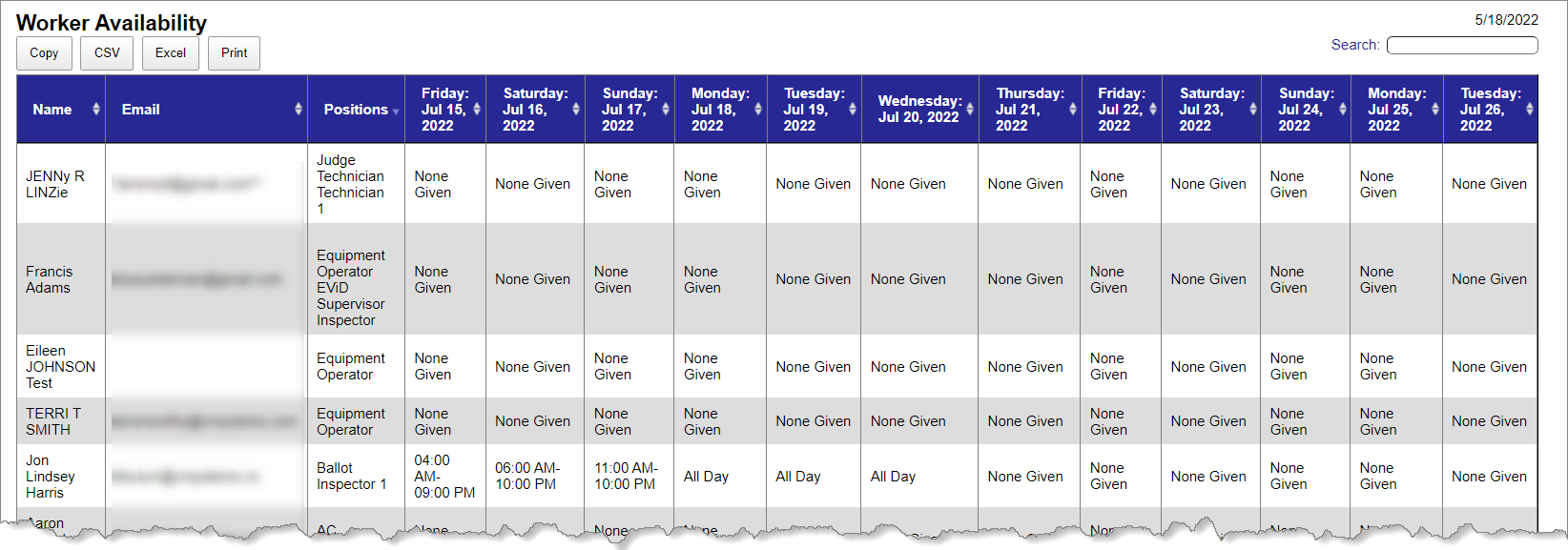
 View the Worker Availability Report
- Go to the Reports tab.
- In the Worker Availability Report row, click Run Report. Options to run the report display.
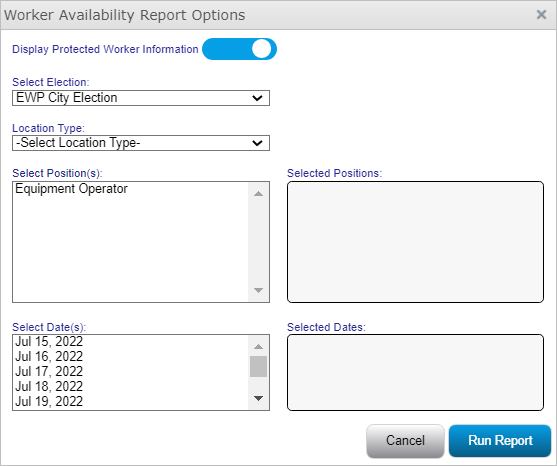
- Select the following options:
- Protected Worker Information—Select whether to include or exclude information for protected workers.
- Election—Select the applicable election name from the list.Note: If you do not see your desired election, make sure the election has been locked. You can only create a Worker Availability report for locked elections.
- Location Type—Select the Election Day, Early Voting, or Combined election type.
- Positions—Select from the list of available positions that are set up for the election.
- Dates—If not reporting for Election Day only, you can select to include specific days.
Note: Not selecting a location type, position, or date will include all data for that respective field in the report. - Click Run Report to view the report. Note: To review the report on-screen, you may need to use the scroll bar at the bottom of the report to view more columns.
- Click Copy to copy the list (for example, to paste into an email) or click CSV or Excel to export the grid contents to an external file.


